Select you Bank
NAB Bank
How to export a CSV file
Step 1: Log in to your NAB Internet Banking.
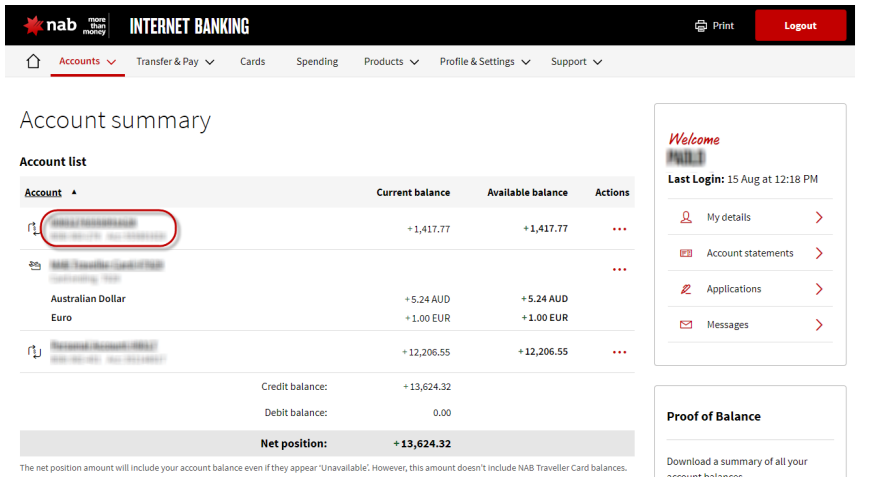
Step 2 : Click on the Bank Account number whose transactions you want to export
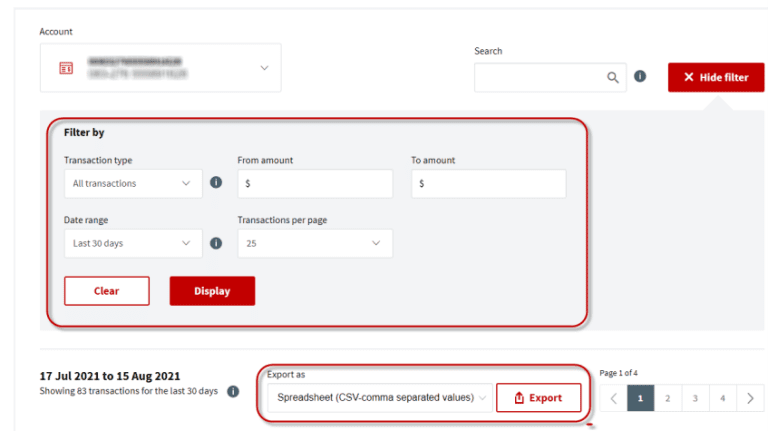
- Click on [Show Filter] and use the Date range filter to select the transaction period you wish to export.
- From Export As select either: Spreadsheet (CSV-comma separated values)
- Click on [Export] > The transaction file is exported to your Download folder
ANZ Bank
How to export a CSV file
ANZ Online Banking allows users to export your bank transactions in a variety of file formats.
Export the csv/qif file
- Log into ANZ Online Banking
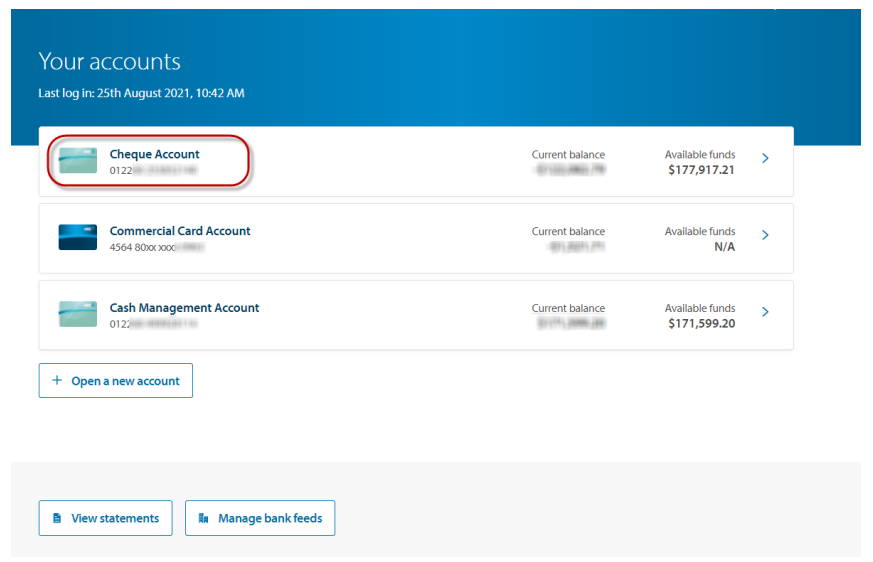
- Select the Bank Account whose transactions you wish to export.
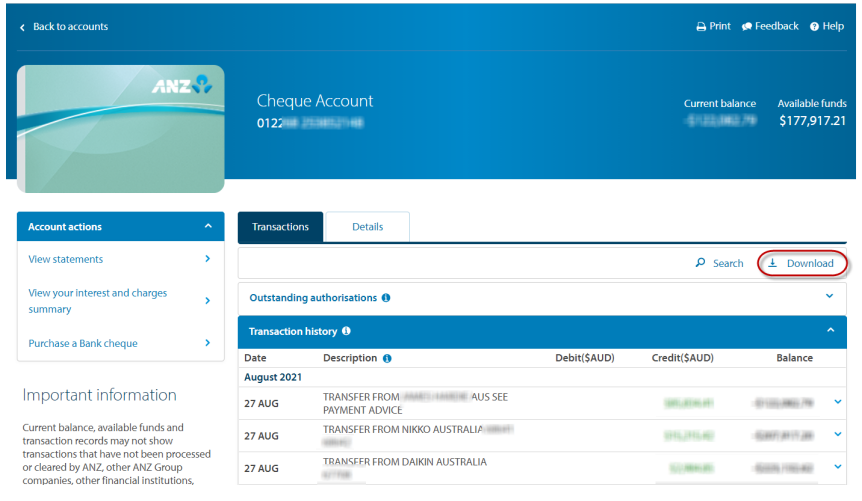
- Click on Download
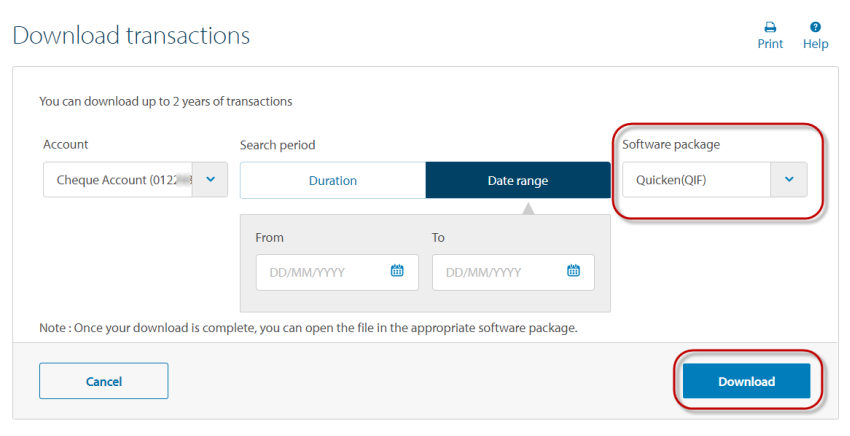
- Select the following details:
1. Account > Select the Bank Account whose transactions you want to download
2. Search period > Select: Date Range
3. Software package > Select: Microsoft Excel(CSV)
- Type the transactions’ from and to dates
- Click on [Download] : The export file downloads to your download folder
CBA Bank
How to export a CSV file
CBA Online Banking allows users to export your bank transactions in a variety of file formats.
Export the csv file
- Log into CBA Netbank Online Banking (Desktop View)
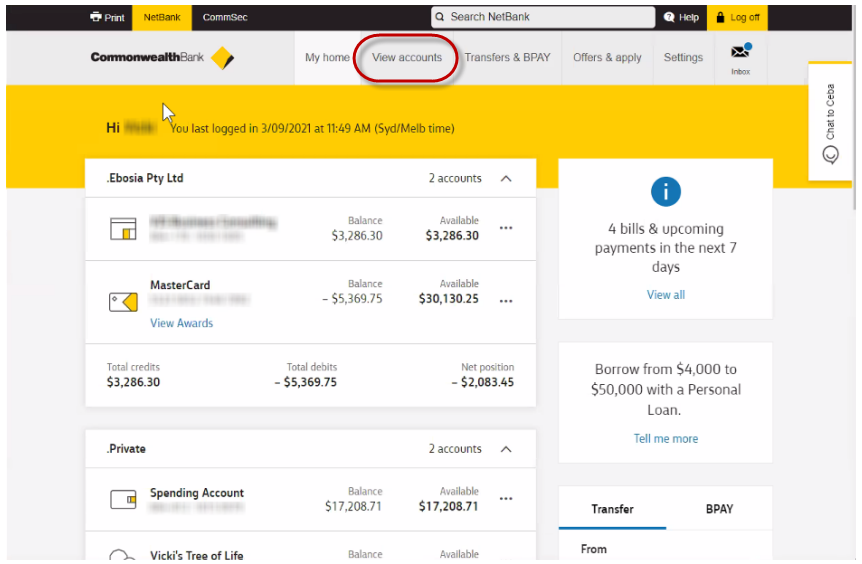
- Click on [View Accounts] > Transactions
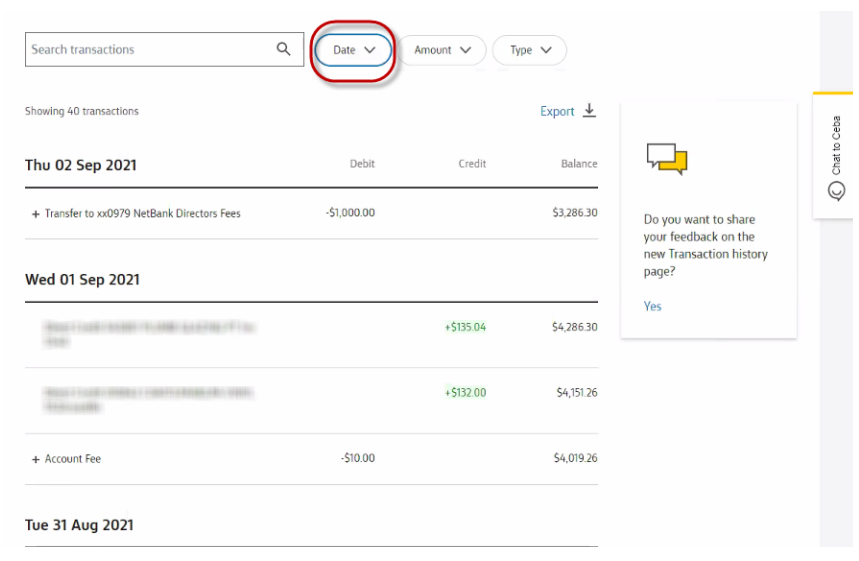
- Click on [Dates] and select the period of the transactions you want to export
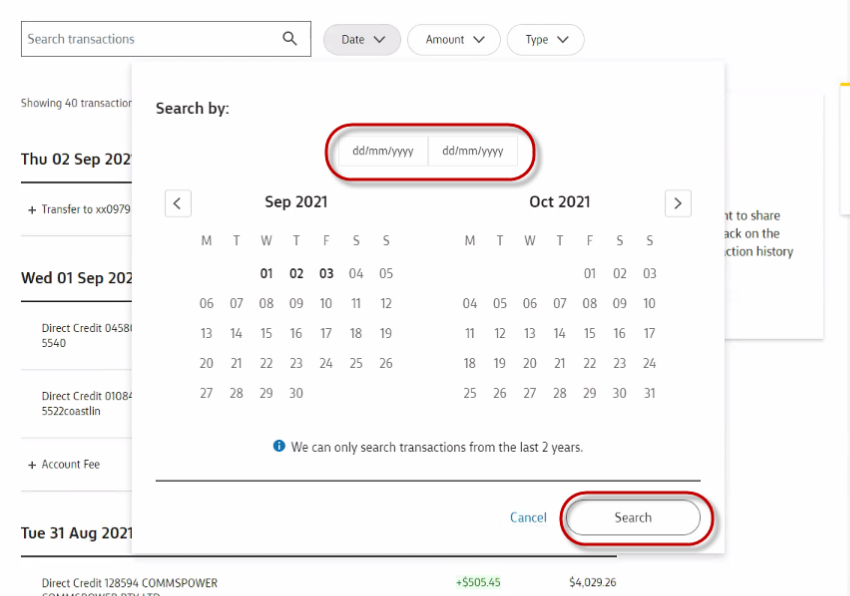
- Click on [Search]
- Click on Export
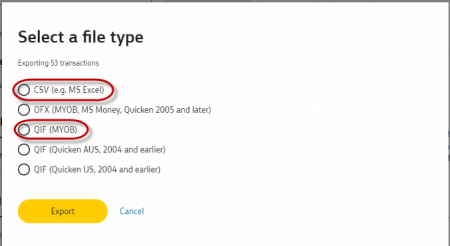
- Select CSV and click on [Export] : The csv file downloads into your Download folder
Westpac Bank
How to export a CSV file
Westpac Online Banking allows users to export your bank transactions in a variety of file formats.
Export the csv file
- Log into Westpac Online Banking
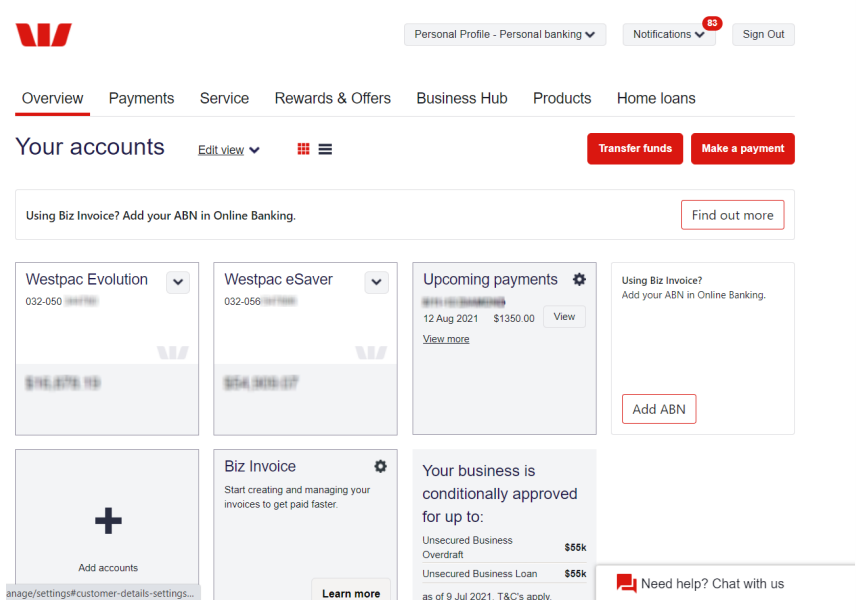
- Click on the Bank Account whose transactions you wish to export
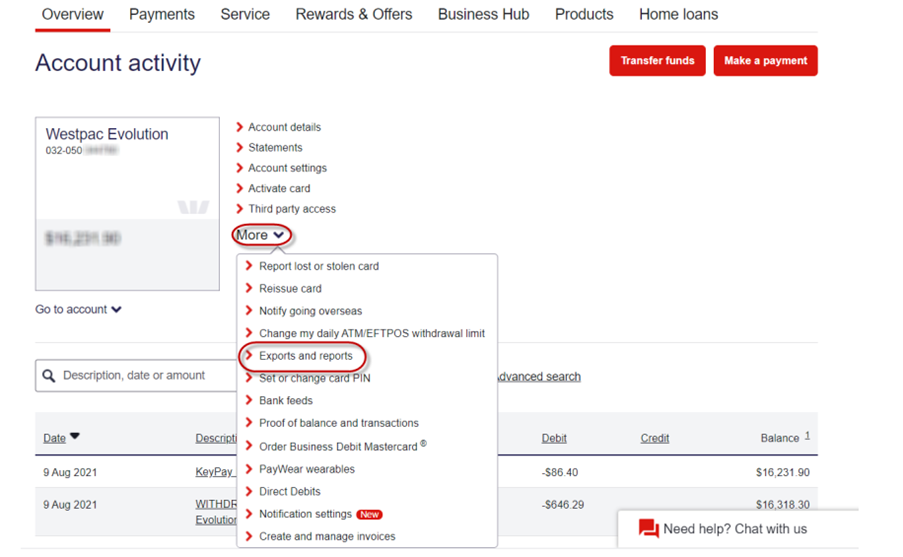
- Click on More > Exports and reports
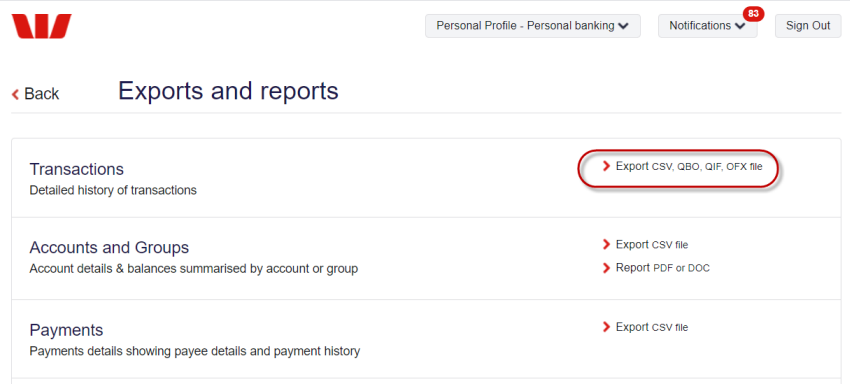
- Click on Export CSV
- Select/Enter the following details:
1. Accounts > Select the Bank Account whose transactions you wish to export
2. File format > Select CSV
3. Date format > Select: DD/MM/YYYY
- Click on [Export] : The transaction file is exported to your Download folder
American Bank
How to export a CSV file
American Express Customer Portal allows users to export their bank transactions in a variety of file formats.
QIF and CSV files are both compatible file types to import into Xero as historical bank feed transactions. The QIF file format is also compatible with MYOB Essentials and AccountRight Web Browser.
Export the csv/qif file
- Log into the American Express Customer PortalThe American Express Online Portal
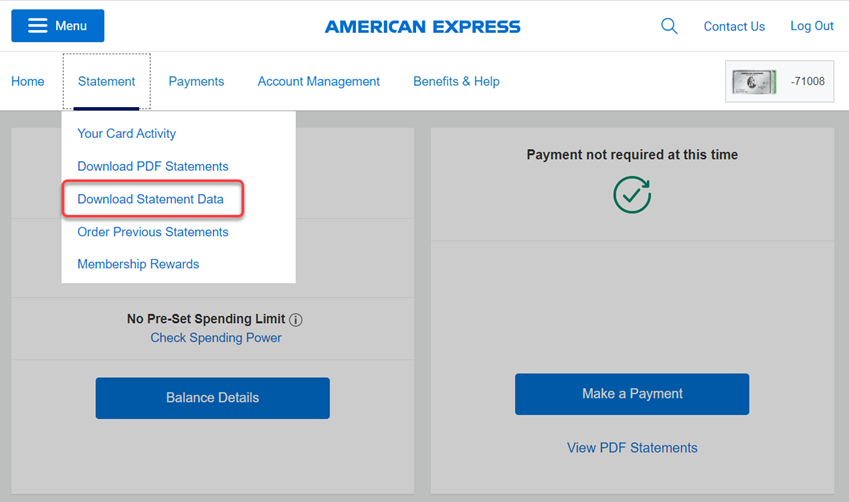
- Select account history. Click on [Statement] > Download Statement DataThe American Express Download Statement Data screen opens
- Select the following options:
- Select data type > Select either QIF or CSV
- Select Cards to download > Select the card whose transactions you wish to export
- Select data ranges to download > Select one or more data ranges
- Click on [Download Now]The data is exported as either a qif or a csv file and downloaded into your local Download folder
St George Bank
How to export a CSV file
St George Business banking allows users to export their bank transactions in a variety of file formats.
QIF and CSV files are both compatible file types to import into Xero as historical bank feed transactions. The QIF file format is also compatible with MYOB Essentials and AccountRight Web Browser.
Export the csv/qif file
- Log into St George Business Banking
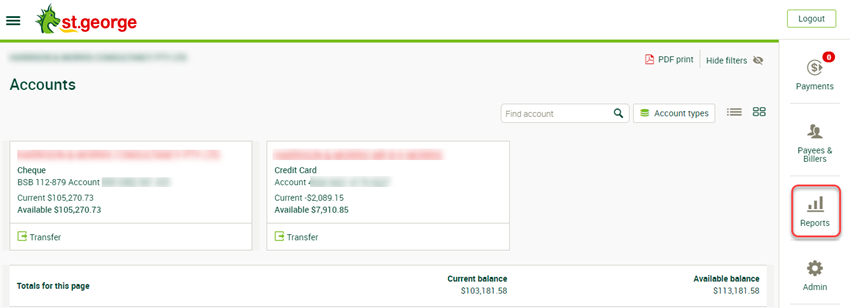 The St George Business Banking ScreenThe St George Reports Screen opens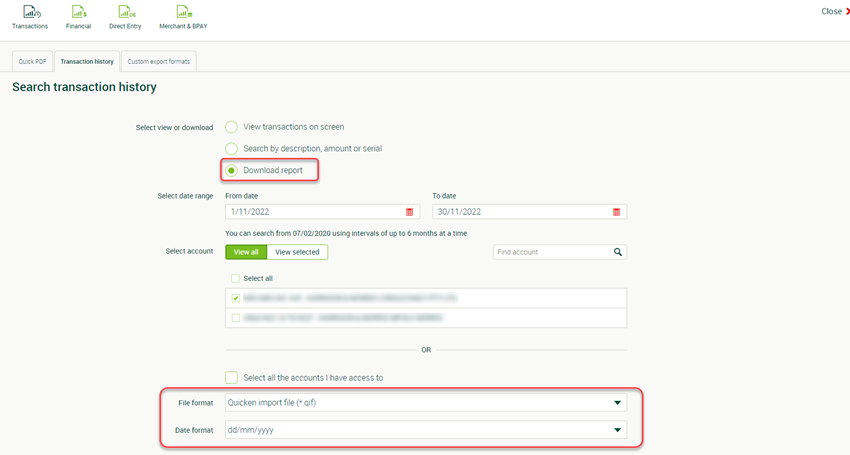
- Select the [Transaction history] Tab
- Select/Enter the following details:
- Select view or Download > Select: Download report
- Select date range > type the transaction (from/to) period
- Select account > Select the Bank Account
- File format > Select either Quicken import file (*qif) or Comma separated values (*csv)
- Date format > Select dd/mm/yyyy
- Click on [Download Report]The csv/qif file downloads into your Download folder