
How to get your Uber or DiDi tax summary
Your rideshare platform produces a summary of what you earned each month. It's the one document I need for your BAS, and most drivers have never had a reason to look for it. Here's exactly where it lives, with screenshots.
Getting your Uber tax summary
Uber publishes a tax summary for each month, a few days after the month ends. I need all three months of the quarter. It is the one document your BAS is prepared from.
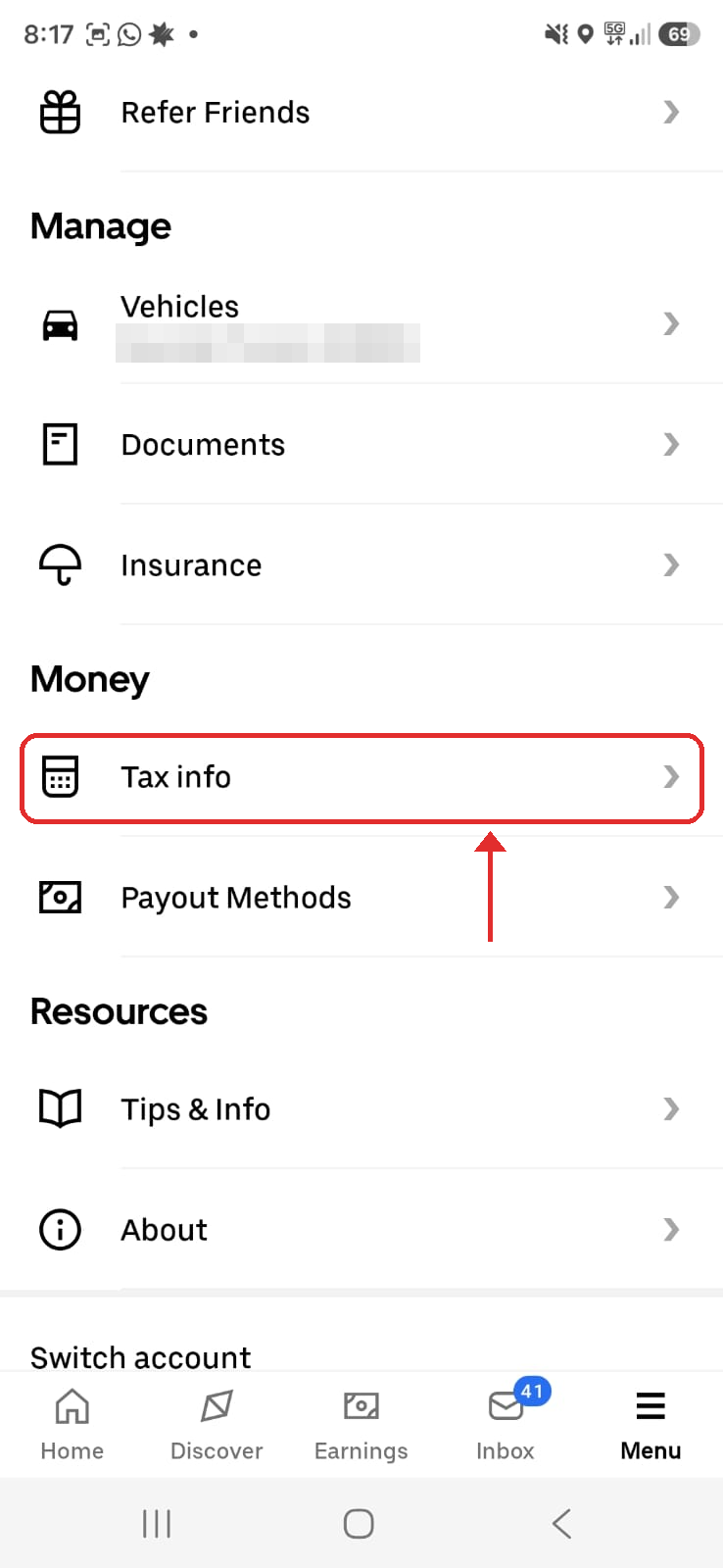
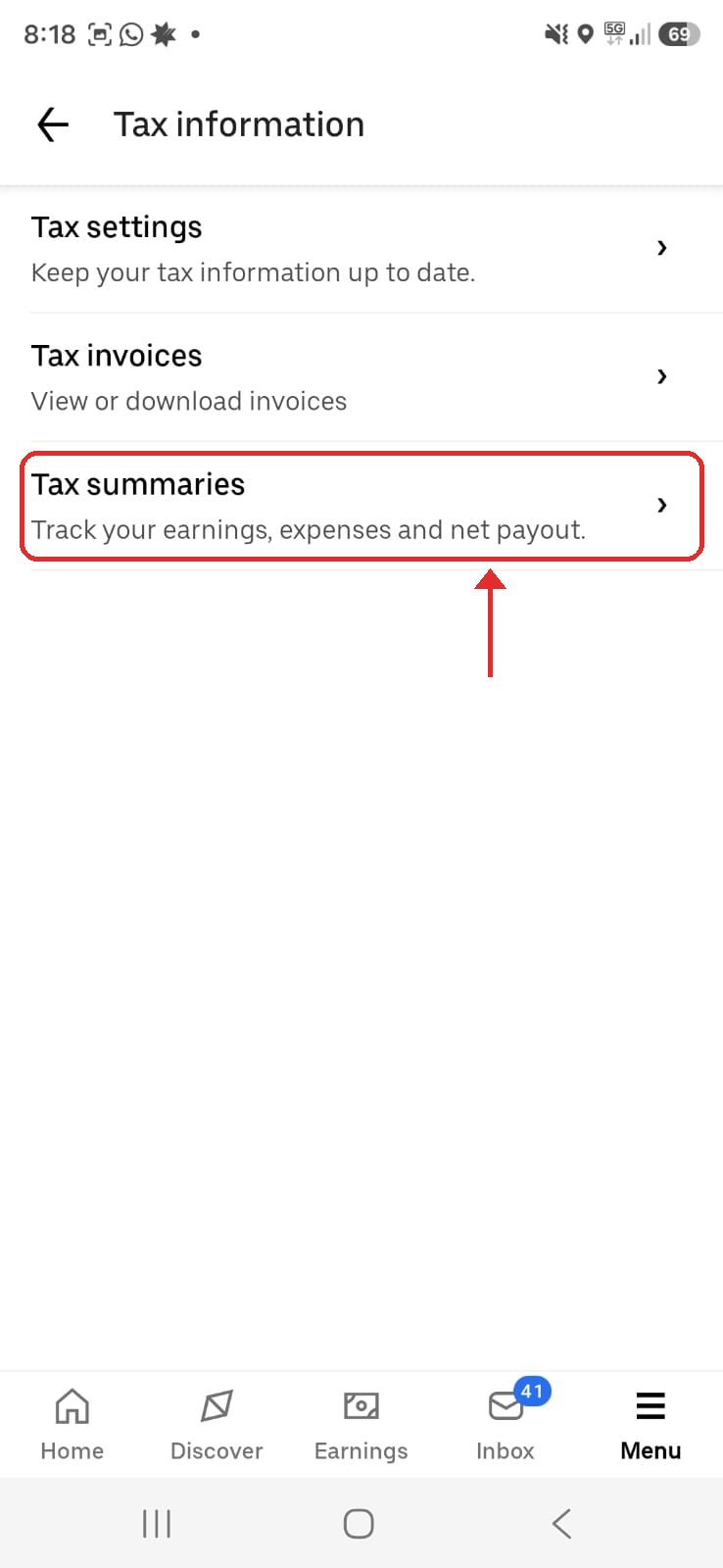
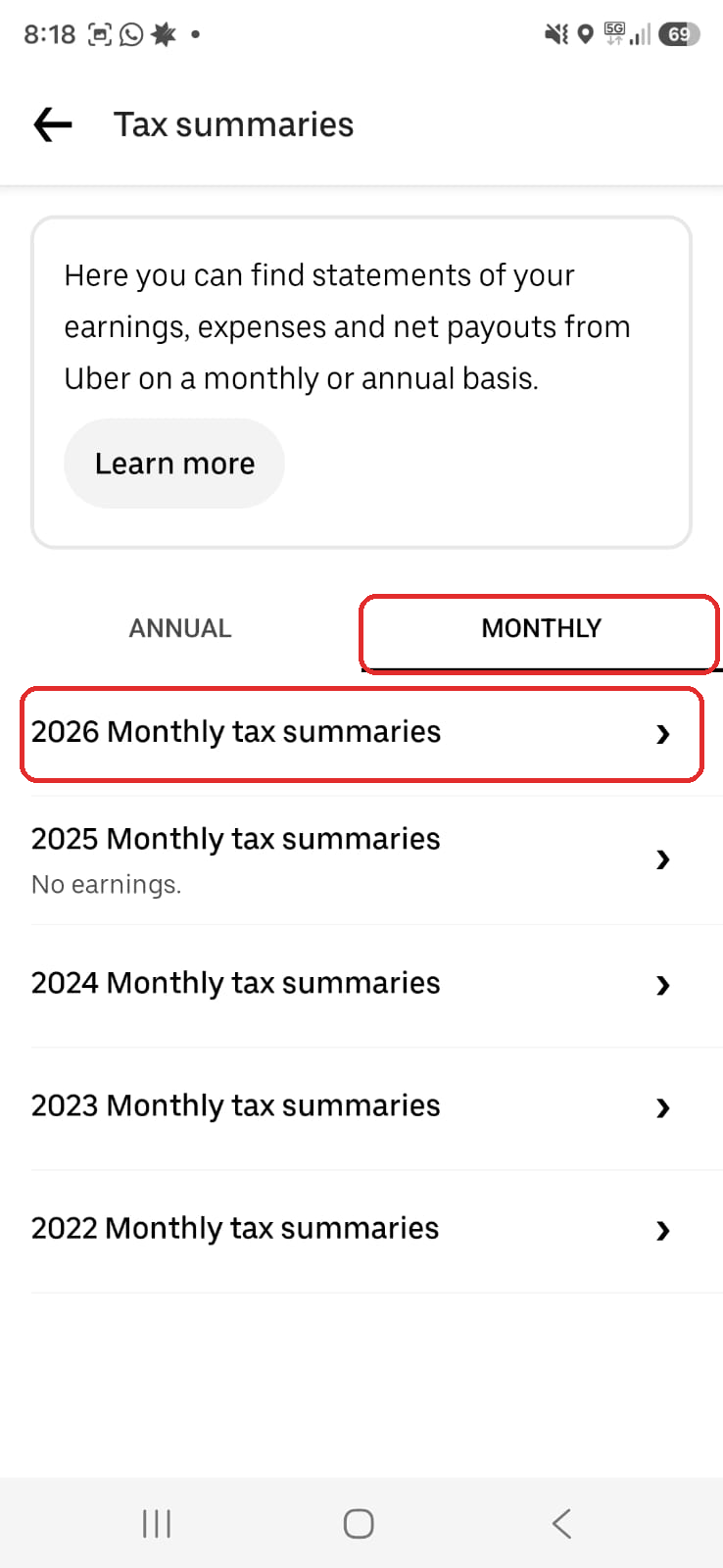
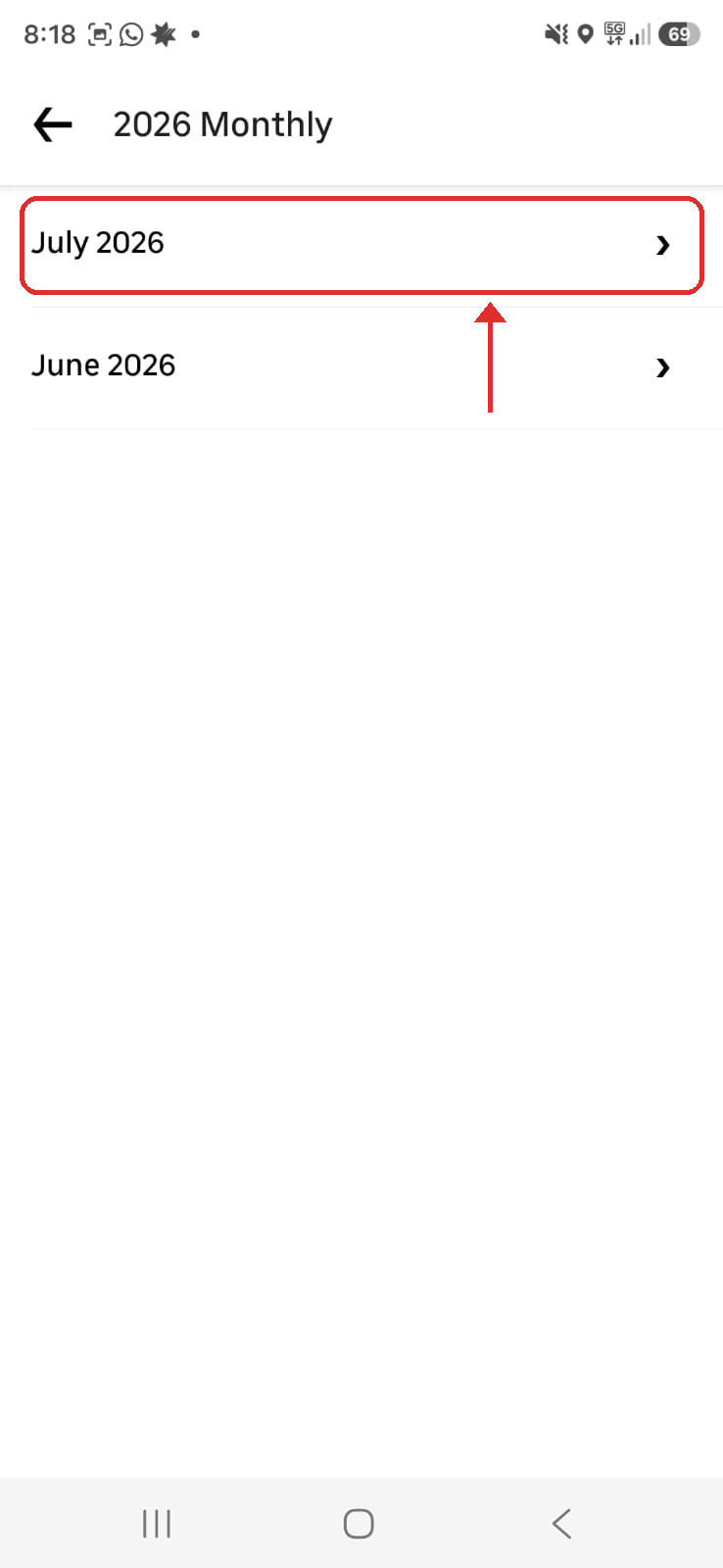
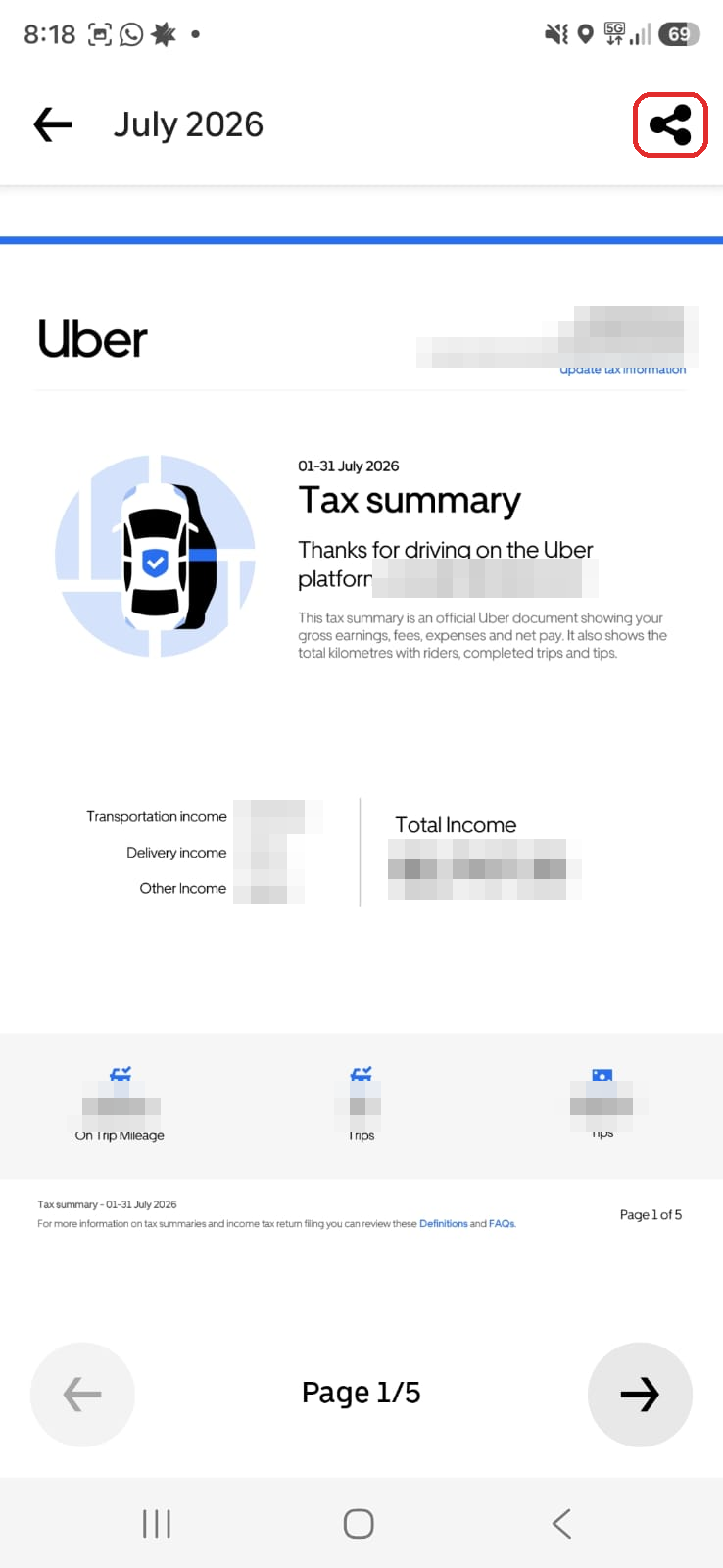
In the Driver app
- Open the Uber Driver app and tap Menu (☰, bottom right).
- Scroll down past Manage to the Money heading, and tap Tax info.
- Tap Tax summaries, not Tax invoices.
- Tap the MONTHLY tab along the top.
- Tap the year, then the month you need.
- Tap the share icon (top right) to save or send the PDF.
- Repeat for the other two months of the quarter.
On a computer
- Go to drivers.uber.com and sign in.
- Open the menu (☰) and choose Earnings, then Tax Information.
- Switch to the Monthly tab, not Annual.
- Choose the month, then Download.
- Repeat for the other two months of the quarter.
Worth knowing
- The most recent month may not be there yet. Uber takes a few days after month end to publish it.
- The annual list is labelled by the year the financial year starts, so “2025 Annual” is FY 2025/26. It doesn’t matter if you stay on Monthly.
- Uber only keeps a short run of months in the app. If the month has dropped off, get it from drivers.uber.com on a computer.
- A month you did not drive still produces a $0.00 summary. Send it anyway, so I can see the quarter is complete.
Getting your DiDi tax summary
DiDi works differently to Uber: you request the statements and DiDi emails them to you. Nothing downloads on the spot. I need all three months of the quarter.
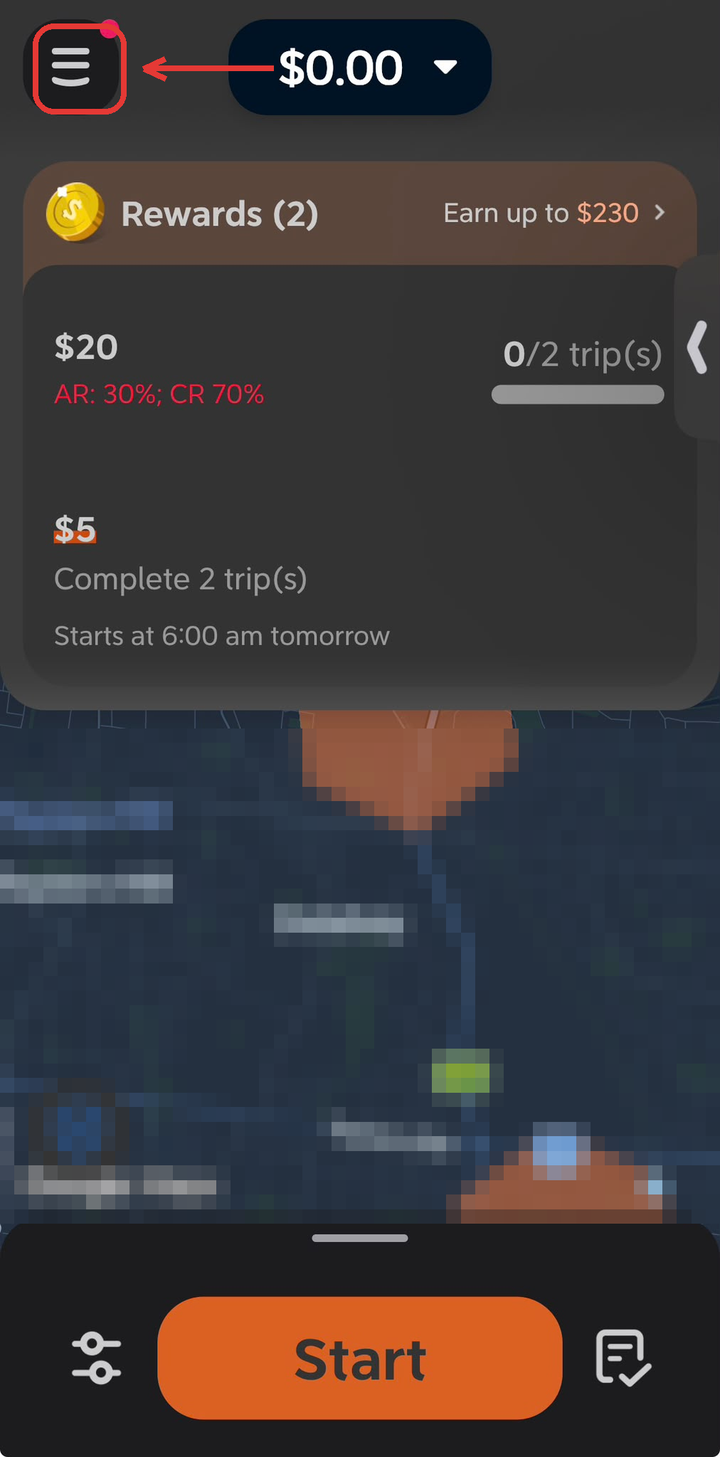
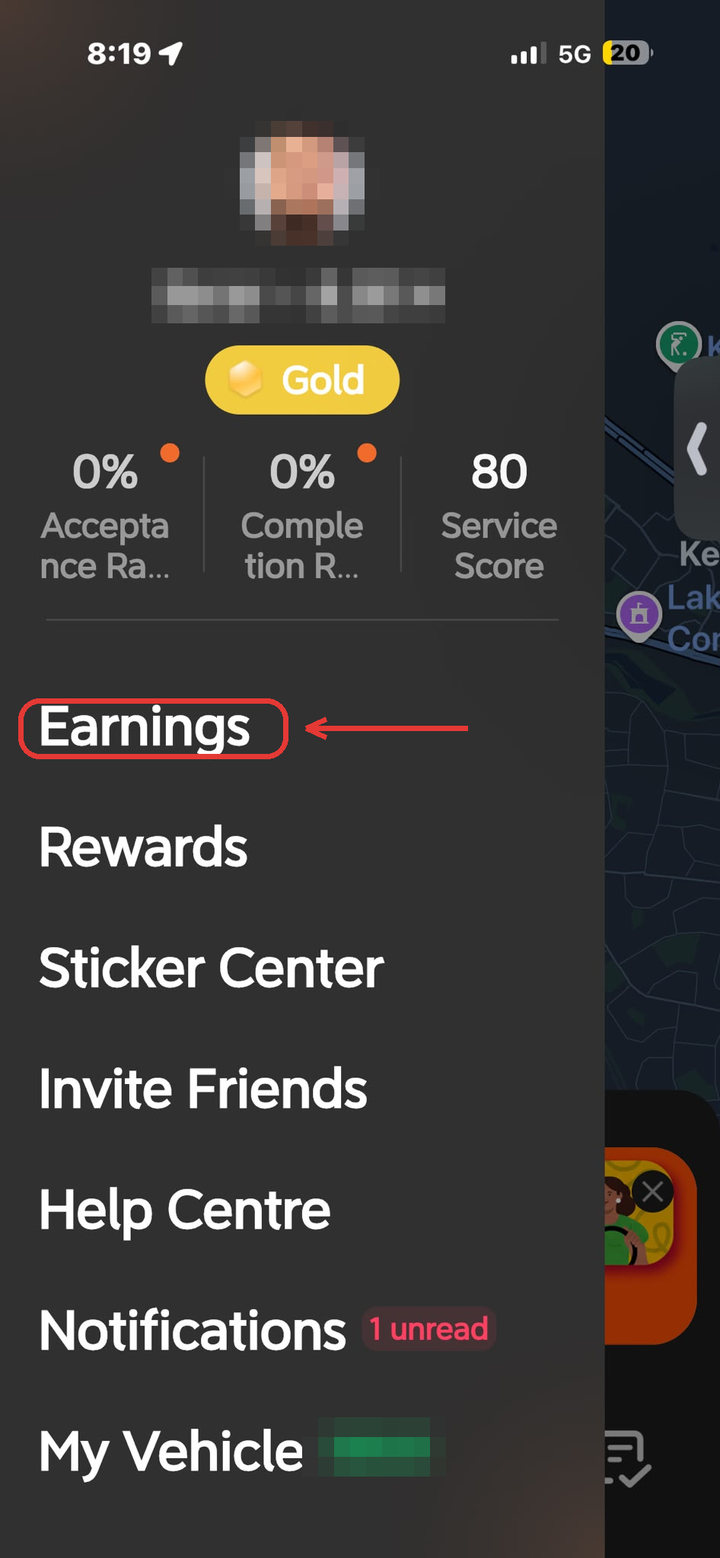
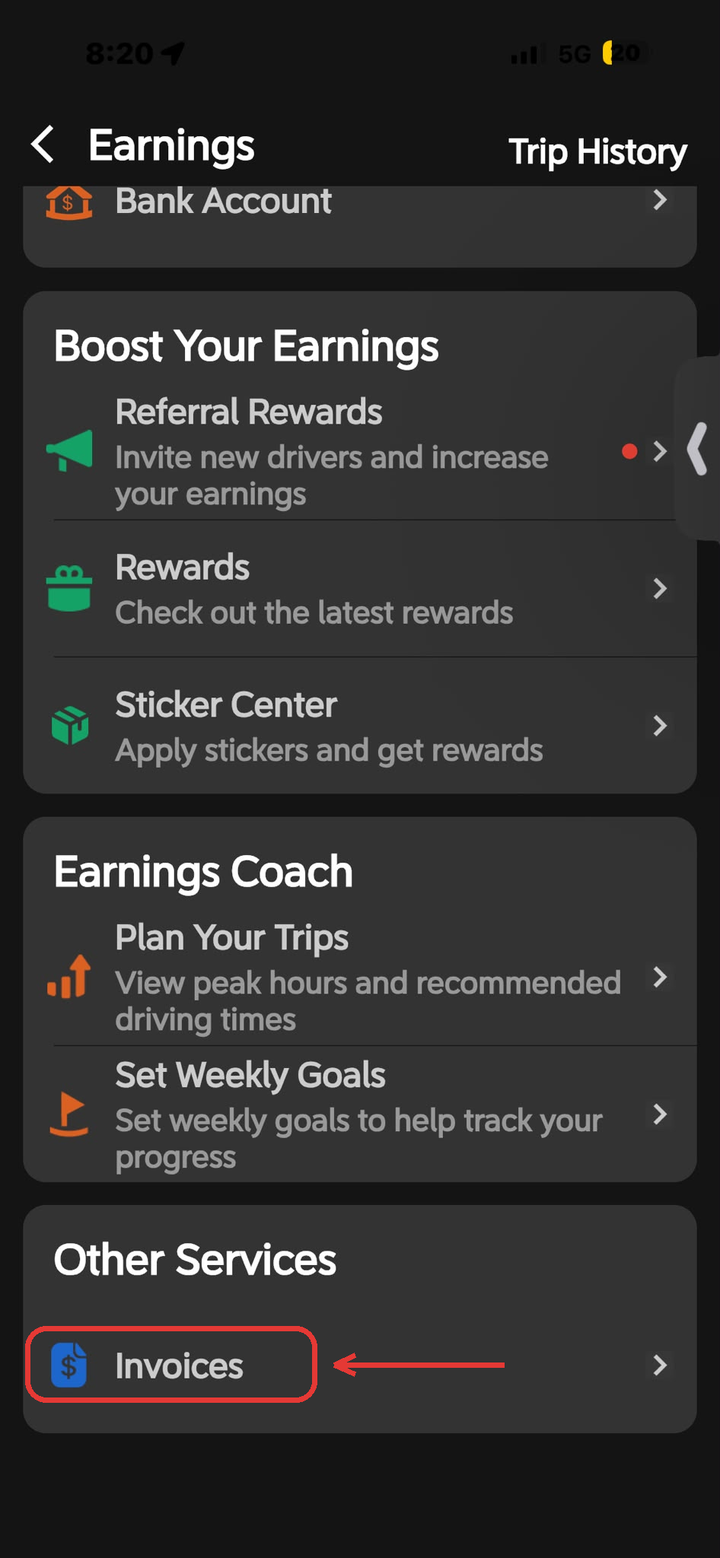
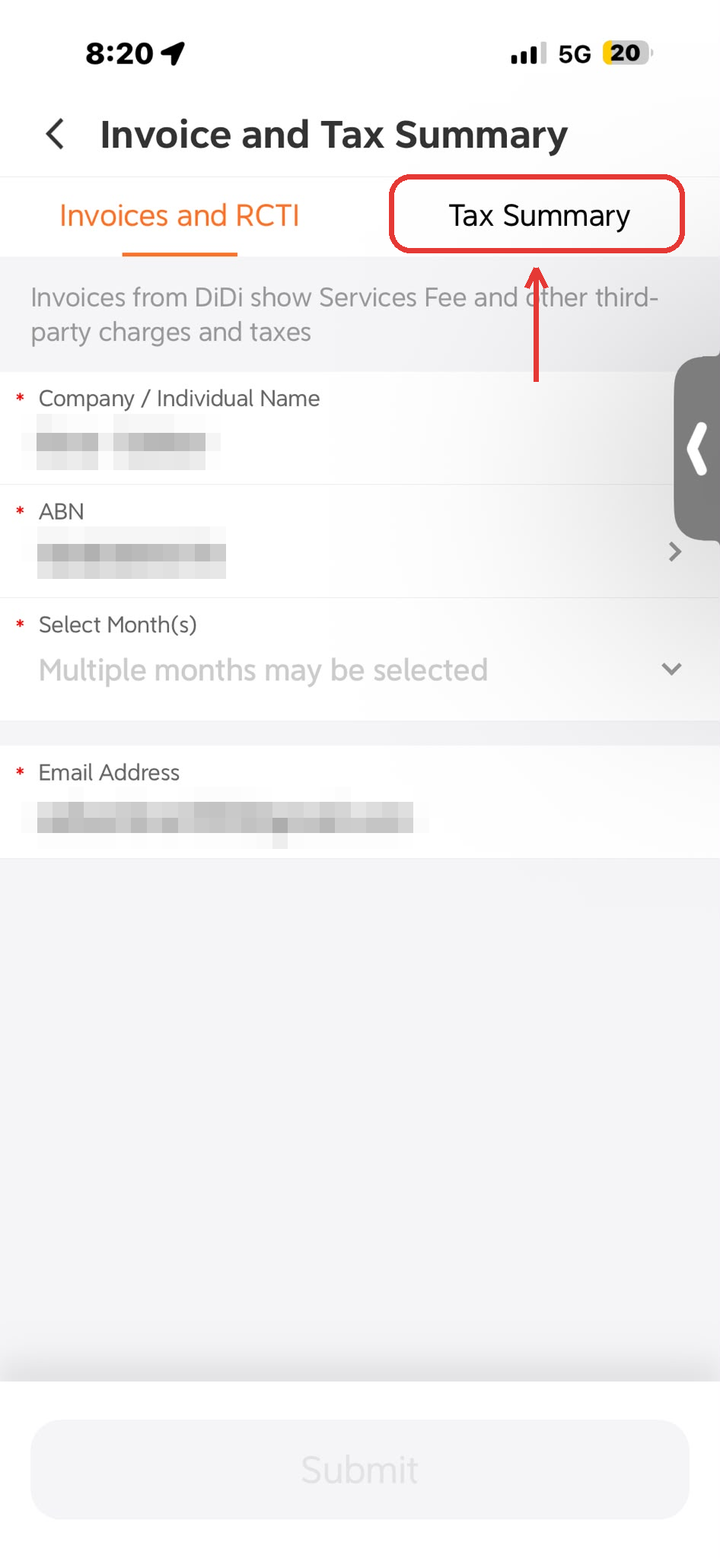
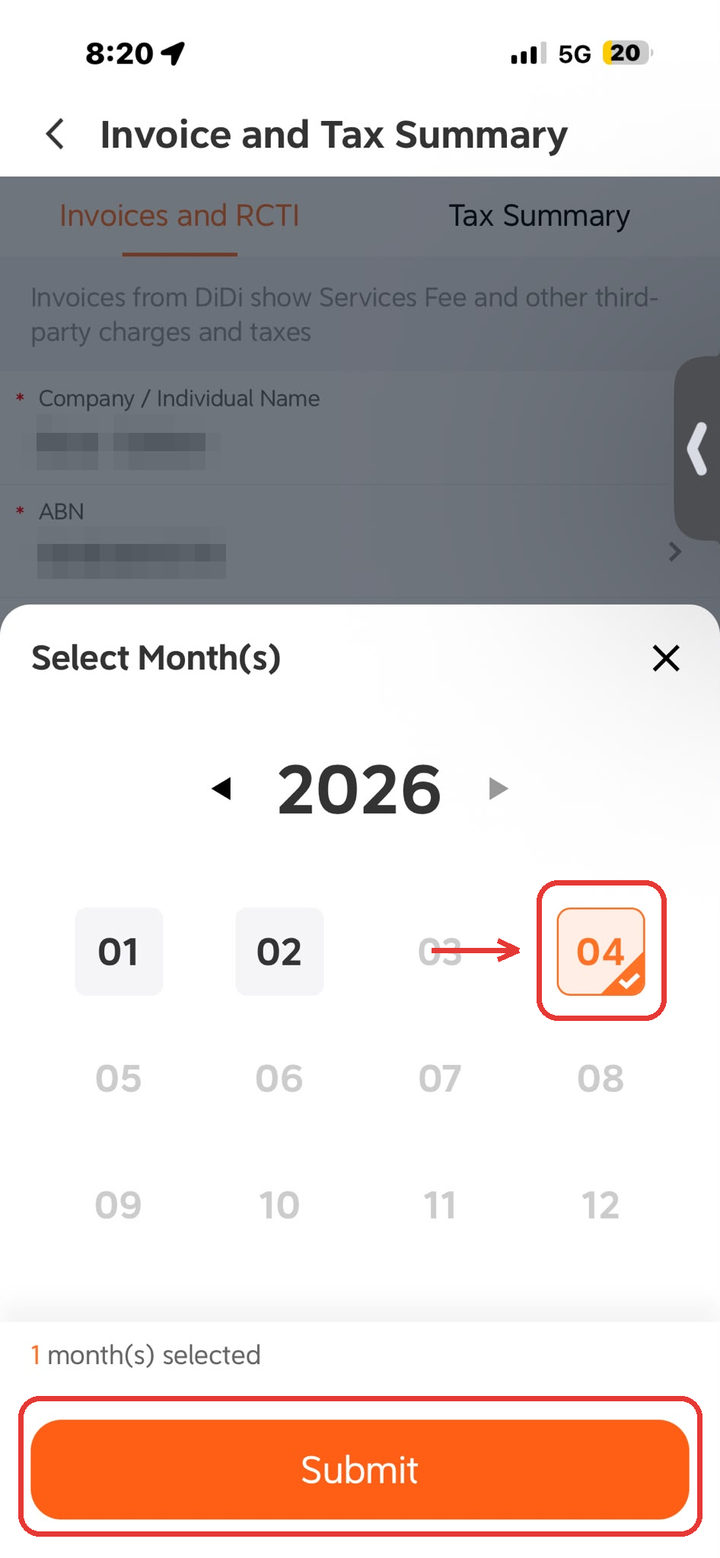
In the Driver app
- Open the DiDi Driver app and go to Earnings.
- Under Other Services, tap Invoices.
- Choose Tax Summary.
- Select the months you need. You can tick all three at once.
- Tap Submit, confirm your email address, and Submit again.
- DiDi emails the statements to you. Save the PDFs, then send them to me.
In your email
- Search your inbox for “DiDi tax” or “DiDi statement”.
- DiDi emails a statement early each month covering the month before.
- Save the PDF attachments and send them to me.
Worth knowing
- The email can take a little while to arrive, and it often lands in spam or promotions.
- It goes to the email address on your DiDi driver account, which may not be the address you use with me.
- If nothing arrives after a day, request it again or contact DiDi support in the app.
- If you drove for both Uber and DiDi, I need all three months from each platform.
Send the PDFs back the same way I sent you this link, or upload them in the portal at taxtracker.com.au/rideshare. If you are stuck, call (03) 8732 2126. Prepared by Zaki Choudhry, Registered Tax Agent (TAN 26298664). Menu paths checked against both apps in August 2026. Not sure what to claim? The rideshare deduction checklist covers it.